Showing posts with label Easter. Show all posts

Tuesday, March 17, 2009

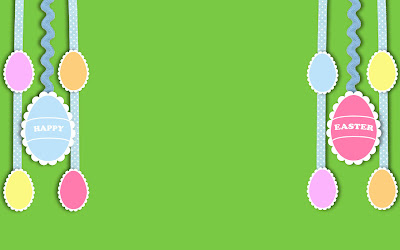
Happy Eggster!


You must have an account with Blogger, and you must be using the Minima Template (Standard or Lefty - but NOT Stretch.)

1. Sign in to Blogger. This will take you to your Dashboard.

2. Select your Blog, then click on Layout.

3. You are now in the 'Add and Arrange Page Elements' screen. Click 'Add a Gadget' in your Sidebar Elements.

4. The 'Add a Gadget' window will open. Scroll down to the 'HTML/JavaScript' gadget, and click on the (+) sign.

5. You are now in the 'Configure HTML/JavaScript' Screen. Under 'Content' you'll see a large box, paste the entire HTML code following (found after the design you like,) into that space.

6. Click 'Save'. And now you have a new background!


<style type="text/css">body {background-image: url("https://lh3.googleusercontent.com/blogger_img_proxy/AEn0k_tc_mJ45TF4ieoE2mHXuHuxOkgCgupu9-y12kMf6rWmFJTE-Jfaov6KqbnsB-cXkYc3tq3a9GhVAYCL-xm0AXyrULT0mBxKrwwimEDiOD5WCkI2ZbylNUg_eEHeyKQmD7Wi5CMjZb-8fqP0gS8-RuvGz7OY2S7o2cG5QOYQSMZwzEmy=s0-d"); background-position: center; background-repeat: no-repeat; background-attachment: fixed; }</style><div id="tag" style="position:absolute; left:0px; top:30px; z-index:50; width:150px; height:50px;"><br /><br/><a href="http://www.blogaroozer.com" target="_blank"><img border="0" src="https://lh3.googleusercontent.com/blogger_img_proxy/AEn0k_u_4P9hLkRinsaiosv1Vtk9DGuKhuql57_1uGWE793cRySFiwOcQ3cd5Z7Q15wZZOCZEF5WPziHaGY-SIGLBM5NcYbzzH0HBlR2szrcSDAw5QODgt4qgXABhxX77067sAG8_0Ew28-RZBR8T6VUsVw73cLQZxZyaT8vxj6K7hGW_-PqTi6N2bqH_BZgPPL6t9rYnd_E-c59Ml4x=s0-d"></a></div>

Vintage Easter Eggs


You must have an account with Blogger, and you must be using the Minima Template (Standard or Lefty - but NOT Stretch.)

1. Sign in to Blogger. This will take you to your Dashboard.

2. Select your Blog, then click on Layout.

3. You are now in the 'Add and Arrange Page Elements' screen. Click 'Add a Gadget' in your Sidebar Elements.

4. The 'Add a Gadget' window will open. Scroll down to the 'HTML/JavaScript' gadget, and click on the (+) sign.

5. You are now in the 'Configure HTML/JavaScript' Screen. Under 'Content' you'll see a large box, paste the entire HTML code following (found after the design you like,) into that space.

6. Click 'Save'. And now you have a new background!


<style type="text/css">body {background-image: url("https://lh3.googleusercontent.com/blogger_img_proxy/AEn0k_tqOb-WMmcR6JOxKEo15Ewax4kx08xuy9bN-UQFqBpoerijGjELOgj8K_r4b9CtdgITkUOBHWp5CcacT5DT-z1GN3ctuzU2iW0O9rkoyTAItic9RceW331Xphlj9FzlL_zjWv8plAS703y1mXPbG6DF1dQ6uuITQF1Afwx4Cw2YrTWn=s0-d"); background-position: center; background-repeat: no-repeat; background-attachment: fixed; }</style><div id="tag" style="position:absolute; left:0px; top:30px; z-index:50; width:150px; height:50px;"><br /><br/><a href="http://www.blogaroozer.com" target="_blank"><img border="0" src="https://lh3.googleusercontent.com/blogger_img_proxy/AEn0k_u_4P9hLkRinsaiosv1Vtk9DGuKhuql57_1uGWE793cRySFiwOcQ3cd5Z7Q15wZZOCZEF5WPziHaGY-SIGLBM5NcYbzzH0HBlR2szrcSDAw5QODgt4qgXABhxX77067sAG8_0Ew28-RZBR8T6VUsVw73cLQZxZyaT8vxj6K7hGW_-PqTi6N2bqH_BZgPPL6t9rYnd_E-c59Ml4x=s0-d"></a></div>

Cheeky Cheepers


You must have an account with Blogger, and you must be using the Minima Template (Standard or Lefty - but NOT Stretch.)

1. Sign in to Blogger. This will take you to your Dashboard.

2. Select your Blog, then click on Layout.

3. You are now in the 'Add and Arrange Page Elements' screen. Click 'Add a Gadget' in your Sidebar Elements.

4. The 'Add a Gadget' window will open. Scroll down to the 'HTML/JavaScript' gadget, and click on the (+) sign.

5. You are now in the 'Configure HTML/JavaScript' Screen. Under 'Content' you'll see a large box, paste the entire HTML code following (found after the design you like,) into that space.

6. Click 'Save'. And now you have a new background!


<style type="text/css">body {background-image: url("https://lh3.googleusercontent.com/blogger_img_proxy/AEn0k_smpviyyV3Er5oq7gXSN1uNlL7t5R2OhcQei40ZpaS8LVBTLNAVLcD8c4h3_xAt1Lp-XsVASUEWb1wZYNlGuOVlmSGbNrst2QaJ0Myh57OZwrk6xWKQo0rleX_wpV0f_4y50NJ3wBt0IQk8efMeUzfgrCIvei_hgLEKdfLdFE5YAYXQ=s0-d"); background-position: center; background-repeat: no-repeat; background-attachment: fixed; }</style><div id="tag" style="position:absolute; left:0px; top:30px; z-index:50; width:150px; height:50px;"><br /><br/><a href="http://www.blogaroozer.com" target="_blank"><img border="0" src="https://lh3.googleusercontent.com/blogger_img_proxy/AEn0k_vuZf9dXYvn5IkaSYUOqY8gzZ1A6F4SpbCYyRB_Th7NHHEFiwstmj2aLxeonn7mJkIJY6jalNGHx8a_vxVBhdIwhcp4DPF2r1uxKuEp5kqSlzRgHkrca8OGxDcvpzyoBh0aXwZFBfRbOwQXOonCwivurJ9v3dfay0SYospP3pT4lTy1rXBpL-_t-teeLLTU0pgvyTIBYEnaNIYk=s0-d"></a></div>

Cheep Cheep!


You must have an account with Blogger, and you must be using the Minima Template (Standard or Lefty - but NOT Stretch.)

1. Sign in to Blogger. This will take you to your Dashboard.

2. Select your Blog, then click on Layout.

3. You are now in the 'Add and Arrange Page Elements' screen. Click 'Add a Gadget' in your Sidebar Elements.

4. The 'Add a Gadget' window will open. Scroll down to the 'HTML/JavaScript' gadget, and click on the (+) sign.

5. You are now in the 'Configure HTML/JavaScript' Screen. Under 'Content' you'll see a large box, paste the entire HTML code following (found after the design you like,) into that space.

6. Click 'Save'. And now you have a new background!


<style type="text/css">body {background-image: url("https://lh3.googleusercontent.com/blogger_img_proxy/AEn0k_uGTLbJ4mfCQLqkSss8FFfLRdCNcAr0psUCKpFJi97bXyQ0ziB9XvvR8atJQzFFjQy0R1vdvXOt55jJW8M1exDGt5enw2Bhasq2JzQN-rFJ8ePQF9Z9YKI2owigfe2AhHV7vbb_niFfsBXBKrGZLFQ9ll_e2obXyhj-DOm-USiiLztS=s0-d"); background-position: center; background-repeat: no-repeat; background-attachment: fixed; }</style><div id="tag" style="position:absolute; left:0px; top:30px; z-index:50; width:150px; height:50px;"><br /><br/><a href="http://www.blogaroozer.com" target="_blank"><img border="0" src="https://lh3.googleusercontent.com/blogger_img_proxy/AEn0k_vwcMwD9c2QNTnW2xlZSUifrzM4jgvB06HUcoiYoeUzsCwSsf2dq4DgnKX6VXoJb-0bkohQ_8Dwhxynq7z5BFZcw_PA0af3BcJ93I_FMAvpyH7h_fb7G7LausgH1S-o8YsZBKFPEKuplTiIIXqPTI_cfqFhyAxeGb9gYDo7EAxjHNQd8-fgbllM1yAyKEdKLuE6xj4XE90yMAFY=s0-d"></a></div>

Easter Chick!


You must have an account with Blogger, and you must be using the Minima Template (Standard or Lefty - but NOT Stretch.)

1. Sign in to Blogger. This will take you to your Dashboard.

2. Select your Blog, then click on Layout.

3. You are now in the 'Add and Arrange Page Elements' screen. Click 'Add a Gadget' in your Sidebar Elements.

4. The 'Add a Gadget' window will open. Scroll down to the 'HTML/JavaScript' gadget, and click on the (+) sign.

5. You are now in the 'Configure HTML/JavaScript' Screen. Under 'Content' you'll see a large box, paste the entire HTML code following (found after the design you like,) into that space.

6. Click 'Save'. And now you have a new background!


<style type="text/css">body {background-image: url("https://lh3.googleusercontent.com/blogger_img_proxy/AEn0k_ubhBVJnELAcMi_JNalj-e-9SNuK7d1lL2oFMXriSt_hQ8yrDFK31kNy1hPSDfOI2e9XzxGg73gXh3UzNXnyFLj-QU98CeIlcLEal1A1B6E7yMloR7OXWeJOJsLOQOc1F0IvorXH633Okpodd7C_BXrm3yqD_H8b0xntttOXK3oGczI=s0-d"); background-position: center; background-repeat: no-repeat; background-attachment: fixed; }</style><div id="tag" style="position:absolute; left:0px; top:30px; z-index:50; width:150px; height:50px;"><br /><br/><a href="http://www.blogaroozer.com" target="_blank"><img border="0" src="https://lh3.googleusercontent.com/blogger_img_proxy/AEn0k_vuZf9dXYvn5IkaSYUOqY8gzZ1A6F4SpbCYyRB_Th7NHHEFiwstmj2aLxeonn7mJkIJY6jalNGHx8a_vxVBhdIwhcp4DPF2r1uxKuEp5kqSlzRgHkrca8OGxDcvpzyoBh0aXwZFBfRbOwQXOonCwivurJ9v3dfay0SYospP3pT4lTy1rXBpL-_t-teeLLTU0pgvyTIBYEnaNIYk=s0-d"></a></div>

He is Risen!


You must have an account with Blogger, and you must be using the Minima Template (Standard or Lefty - but NOT Stretch.)

1. Sign in to Blogger. This will take you to your Dashboard.

2. Select your Blog, then click on Layout.

3. You are now in the 'Add and Arrange Page Elements' screen. Click 'Add a Gadget' in your Sidebar Elements.

4. The 'Add a Gadget' window will open. Scroll down to the 'HTML/JavaScript' gadget, and click on the (+) sign.

5. You are now in the 'Configure HTML/JavaScript' Screen. Under 'Content' you'll see a large box, paste the entire HTML code following (found after the design you like,) into that space.

6. Click 'Save'. And now you have a new background!


<style type="text/css">body {background-image: url("https://lh3.googleusercontent.com/blogger_img_proxy/AEn0k_si7DEV0UaXNwIoKd16tkBJ413cPv5Fz2gOKtniaVTgNzg6DORvWxQ7k1COAETWST6Oa2SBfXOQZoAnNAJwJQRjyPjpZgDuRFhGjNwHqxqAFD6WgY-UfkQfAjYmZlCGzkQpqGw0b01HPFQsaap5ibFlykKBGYbk3BcVz0fn2w61n2Y=s0-d"); background-position: center; background-repeat: no-repeat; background-attachment: fixed; }</style><div id="tag" style="position:absolute; left:0px; top:30px; z-index:50; width:150px; height:50px;"><br /><br/><a href="http://www.blogaroozer.com" target="_blank"><img border="0" src="https://lh3.googleusercontent.com/blogger_img_proxy/AEn0k_uQjiX7biDkghwD0zOruzjMkiVddT00Vgz0LLJIOP4MSdS30ypB-GZBRe9OMgh3Rt-oDxa8urx2JMNWOBOTx6UtPQjJVROwp3F98iJD0CnGeL95LJlFLAGTZ_ULFljf4RUOpbPp-HhPSBXwwg55hu06RNluuwwOcroVZbDJpIgdJLe0-b6pArJama35YiP7ACO4-nUSju3Mbq4=s0-d"></a></div>

Easter Eats


You must have an account with Blogger, and you must be using the Minima Template (Standard or Lefty - but NOT Stretch.)

1. Sign in to Blogger. This will take you to your Dashboard.

2. Select your Blog, then click on Layout.

3. You are now in the 'Add and Arrange Page Elements' screen. Click 'Add a Gadget' in your Sidebar Elements.

4. The 'Add a Gadget' window will open. Scroll down to the 'HTML/JavaScript' gadget, and click on the (+) sign.

5. You are now in the 'Configure HTML/JavaScript' Screen. Under 'Content' you'll see a large box, paste the entire HTML code following (found after the design you like,) into that space.

6. Click 'Save'. And now you have a new background!


<style type="text/css">body {background-image: url("https://lh3.googleusercontent.com/blogger_img_proxy/AEn0k_t-VigPzsKhd_1WrzqDI8uBzR-TgTD2v8r4fbj7AJeeJ8v77FfdB27JzNVxq9ugJnuGvMbUXOH0JrNYWB6jGDduB2t7vo9kErWJ0e7i-5UNIUzV3miAjhLGBNA2xS4thhqID7-JseeRkNnsFOXAlnOli22SheZweD7hnN7WHB1wFkvZ=s0-d"); background-position: center; background-repeat: no-repeat; background-attachment: fixed; }</style><div id="tag" style="position:absolute; left:0px; top:30px; z-index:50; width:150px; height:50px;"><br /><br/><a href="http://www.blogaroozer.com" target="_blank"><img border="0" src="https://lh3.googleusercontent.com/blogger_img_proxy/AEn0k_vwcMwD9c2QNTnW2xlZSUifrzM4jgvB06HUcoiYoeUzsCwSsf2dq4DgnKX6VXoJb-0bkohQ_8Dwhxynq7z5BFZcw_PA0af3BcJ93I_FMAvpyH7h_fb7G7LausgH1S-o8YsZBKFPEKuplTiIIXqPTI_cfqFhyAxeGb9gYDo7EAxjHNQd8-fgbllM1yAyKEdKLuE6xj4XE90yMAFY=s0-d"></a></div>

Friday, January 30, 2009

Applique Butterflies


You must have an account with Blogger, and you must be using the Minima Template (Standard or Lefty - but NOT Stretch.)

1. Sign in to Blogger. This will take you to your Dashboard.

2. Select your Blog, then click on Layout.

3. You are now in the 'Add and Arrange Page Elements' screen. Click 'Add a Gadget' in your Sidebar Elements.

4. The 'Add a Gadget' window will open. Scroll down to the 'HTML/JavaScript' gadget, and click on the (+) sign.

5. You are now in the 'Configure HTML/JavaScript' Screen. Under 'Content' you'll see a large box, paste the entire HTML code following (found after the design you like,) into that space.

6. Click 'Save'. And now you have a new background!


<style type="text/css">body {background-image: url("https://lh3.googleusercontent.com/blogger_img_proxy/AEn0k_voAmGuJxzYr4N7psN-3RtDsayPcH_AGLkM2yhcxK5BMu9mACq8MUZYKhBmYpMlSzJhgPqd1yK8l5XSOkxz-RukmbGBddLOeZPtKBY9bOUKA9Wc6xXyJr652ytnRJxzBCMGTjdXM694KyTFseM-5qVeBYfOr8BdW68Q7JENmCceQkJhiNrbxagGSDD-IIKRaD8Q=s0-d"); background-position: center; background-repeat: no-repeat; background-attachment: fixed; }</style><div id="tag" style="position:absolute; left:0px; top:0px; z-index:50; width:150px; height:50px;"><br /><br/><a href="http://www.blogaroozer.com" target="_blank"><img border="0" src="https://lh3.googleusercontent.com/blogger_img_proxy/AEn0k_u_4P9hLkRinsaiosv1Vtk9DGuKhuql57_1uGWE793cRySFiwOcQ3cd5Z7Q15wZZOCZEF5WPziHaGY-SIGLBM5NcYbzzH0HBlR2szrcSDAw5QODgt4qgXABhxX77067sAG8_0Ew28-RZBR8T6VUsVw73cLQZxZyaT8vxj6K7hGW_-PqTi6N2bqH_BZgPPL6t9rYnd_E-c59Ml4x=s0-d"></a></div>

Wednesday, January 28, 2009

Garden Variety Tulips


You must have an account with Blogger, and you must be using the Minima Template (Standard or Lefty - but NOT Stretch.)

1. Sign in to Blogger. This will take you to your Dashboard.

2. Select your Blog, then click on Layout.

3. You are now in the 'Add and Arrange Page Elements' screen. Click 'Add a Gadget' in your Sidebar Elements.

4. The 'Add a Gadget' window will open. Scroll down to the 'HTML/JavaScript' gadget, and click on the (+) sign.

5. You are now in the 'Configure HTML/JavaScript' Screen. Under 'Content' you'll see a large box, paste the entire HTML code following (found after the design you like,) into that space.

6. Click 'Save'. And now you have a new background!


<style type="text/css">body {background-image: url("https://lh3.googleusercontent.com/blogger_img_proxy/AEn0k_uhcxeUYJ4fEQLAgjJffrmjpzgRQ9M0kHm3TRxTrLDPkFDqHrG4MyAhQVG7FrljGI71bliUgg0lrnCcrlzOG2yMXCDnIhUpcOiNfQH3QG4RtWSoxQHONuIWNMOPMc7-jhb0eIn2d_GitkE8oUF8I8loT3xSrKKP_IG1MRZJsTImvXEJOoCdkBrtIbS8yG_TP5iGkjikpY0Fe0r4WGiPmhc=s0-d"); background-position: center; background-repeat: no-repeat; background-attachment: fixed; }</style><div id="tag" style="position:absolute; left:0px; top:0px; z-index:50; width:150px; height:50px;"><br /><br/><a href="http://www.blogaroozer.com" target="_blank"><img border="0" src="https://lh3.googleusercontent.com/blogger_img_proxy/AEn0k_u_4P9hLkRinsaiosv1Vtk9DGuKhuql57_1uGWE793cRySFiwOcQ3cd5Z7Q15wZZOCZEF5WPziHaGY-SIGLBM5NcYbzzH0HBlR2szrcSDAw5QODgt4qgXABhxX77067sAG8_0Ew28-RZBR8T6VUsVw73cLQZxZyaT8vxj6K7hGW_-PqTi6N2bqH_BZgPPL6t9rYnd_E-c59Ml4x=s0-d"></a></div>